
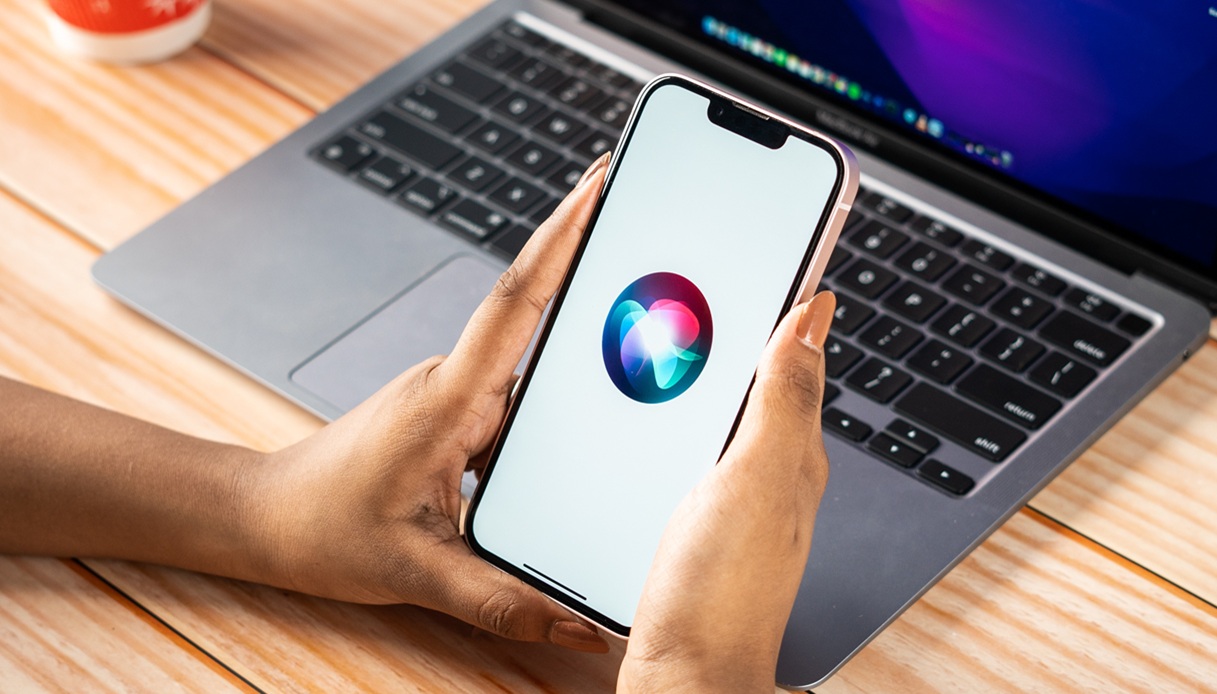
Apple Users Gain Greater Control: how to fully Disable Siri Across Devices
Cupertino, CA - Apple is providing users with expanded options to disable siri functionality on iPhone, iPad, and Apple Watch, following the rollout of Apple Intelligence features unavailable on older devices.The changes allow users to revert to voice-only Siri,or completely deactivate the assistant across their Apple ecosystem.
Disabling Siri on iPhone and iPad
For older devices lacking Apple Intelligence, users can limit Siri to voice activation only. Navigate to settings, then tap Siri & Search. Deactivate Speak and Write to Siri, followed by Press side Button for Siri to prevent accidental activation by holding the side button. Further disable Write to Siri if available, to eliminate all interaction methods.
A partial deactivation is also possible: turning off Allow Siri When Locked prevents the assistant from activating when the screen is off or the device is locked.
disabling Siri on Apple watch
Accidental Siri activation on Apple Watch, often triggered by pressing and holding the Digital Crown, can now be prevented. Open the Watch app on your iPhone, scroll to Siri, tap Listen, and select Deactivate. Additionally, disable Raise to Speak and Press Digital Crown within the Siri settings to prevent wrist movements or Digital Crown presses from activating the assistant.
Managing siri Suggestions and Requests
recent siri iterations integrate suggestions into searches, notifications, and custom screens. Users can manage these features by going to Settings, then Apple Intelligence & Siri (or Siri on older devices), and scrolling to Suggestions. Options to disable include:
* Suggest Apps Before Searching
* Allow Notifications
* Show in app Library
* Show While Sharing
* Show Listening Suggestions
further control is available via Announce Calls and Announce Notifications submenus, allowing users to prevent Siri from reading caller IDs or notifications aloud while using headphones or listening to music.
