
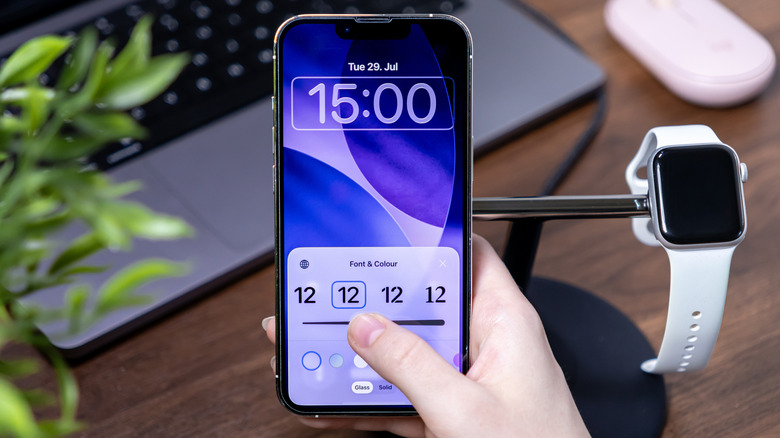
iOS 26 Update Lets iPhone Users Customize Lock Screen Clock Size
Apple’s latest iOS 26 update introduces a highly requested feature: the ability to adjust the size of the clock on the iPhone’s lock screen. Previously fixed, the clock’s prominence can now be tailored to individual preferences, enhancing both readability and aesthetic appeal. This customization option arrives alongside other lock screen enhancements, offering users greater control over their iPhone’s visual experience.
The update impacts all iPhone users running iOS 26, providing a simple method to personalize a frequently viewed interface.The ability to resize the lock screen clock addresses long-standing user feedback, allowing for improved visibility and a more customized look. Following the update,users can expect further refinements to lock screen personalization as Apple continues to iterate on the feature based on user interaction.
to increase the clock size, long-press on any empty area of the lock screen until the “customize” button appears. Tap “Customize,” than locate the handle on the lower right-hand side of the clock display. Dragging this handle downward enlarges the clock, while pulling it upward reduces the size. Once satisfied, tap “Done” to save the changes.
Currently, clock resizing is limited to the default font option. If the adjustment handle is unavailable, selecting the first font choice on the left side of the clock customization screen will enable resizing functionality. While customizing, users can also modify the wallpaper, add widgets, and alter the clock’s color to create a uniquely personalized lock screen.
