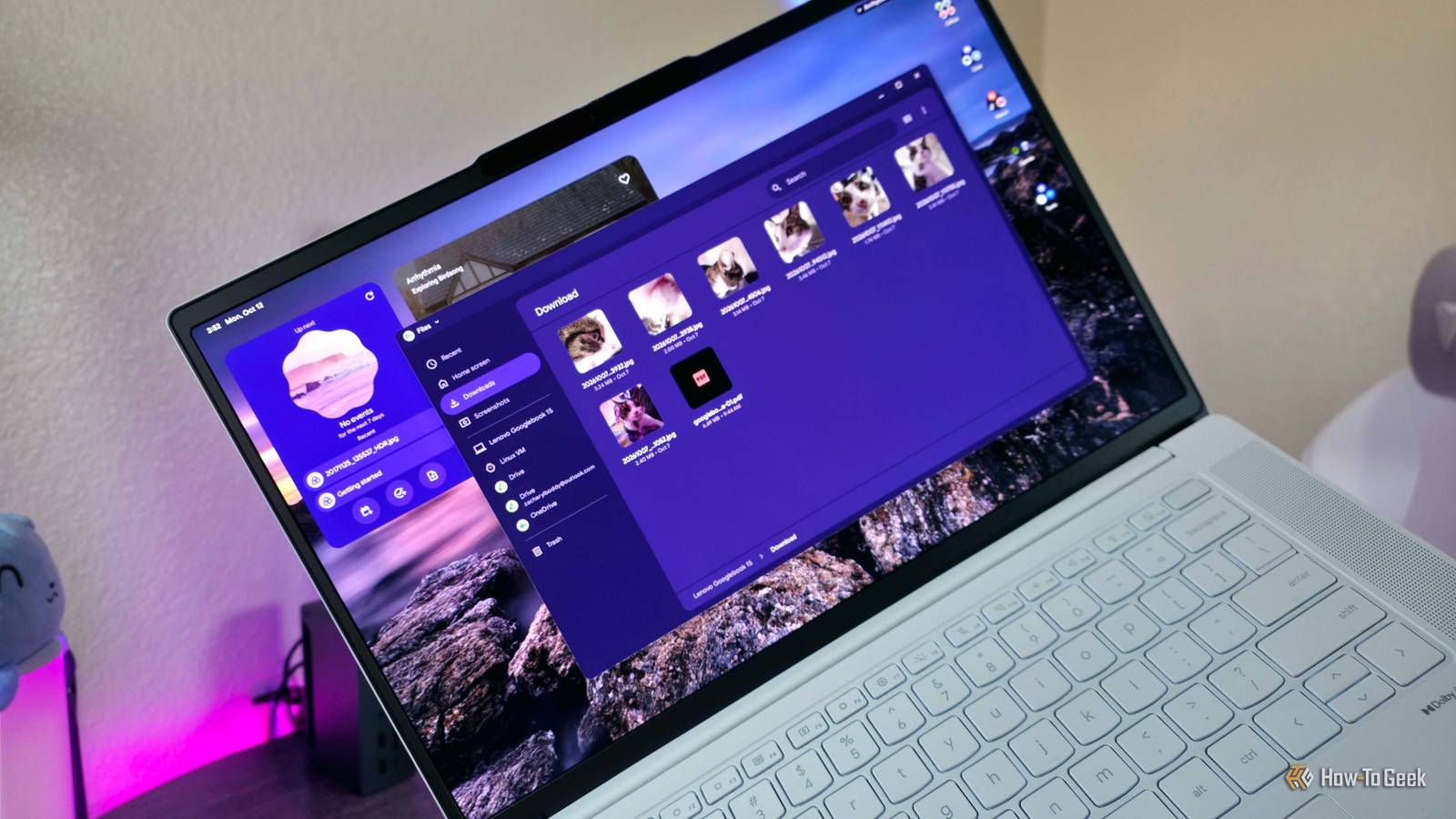
How to Find and Manage Files on Googlebook OS
Finding Downloaded Files in Googlebook OS
Googlebook OS users attempting to locate downloaded documents, images, and other assets can access everything directly through the updated Files app. According to HowToGeek reporting, Google has overhauled the classic Chromebook file management interface to prioritize always-available local storage across its next-generation Googlebook devices. By default, downloads from Chrome, native applications, and Quick Share utilities route directly into a centralized local directory without requiring manual path configurations.
The Tech TL;DR:
- Downloaded files are automatically saved to the Downloads folder within the default Files app, accessible via the app drawer, taskbar, or the Google + F keyboard shortcut.
- The interface supports native AI-powered natural language searches, along with local sorting, list or grid view options, and rapid keyboard controls like Ctrl + Enter for renaming.
- Users can virtually mount cloud storage accounts or integrate Android device storage through Cross-Device Services, though these remote connections can occasionally experience consistency issues.
Locating Downloads and Screenshots in the Local Directory
Accessing stored assets requires opening the Files app through the standard application launcher or via the system shortcut. Once open, users will find the primary Downloads directory positioned near the top of the left-hand menu pane. Screenshots taken using system shortcuts automatically route into a dedicated Screenshots subdirectory nested directly beneath Downloads. For those inspecting the absolute home path of the machine, clicking on the specific device folder—such as a Lenovo Googlebook 15—reveals the exact directory structure, where picture assets reside within Pictures and then Screenshots. Within this interface, users can preview, open, rename, and share individual files, or execute standard file relocation procedures using right-click context menus or classic clipboard keyboard shortcuts.
Because Googlebook is built on the Android tech stack, it's a total game-changer for Android users. Your phone and laptop work together natively at the system level: ・When you set up and sign in, what you need from your phone is already there – from passwords, contacts,… pic.twitter.com/ew1b10IesM
# Quick CLI file management via Linux Terminal VM integration
cd ~/Downloads
ls -la --sort=size
mv *.png ~/Pictures/Screenshots/
Utilizing Built-In Management Features and Cloud Integrations
While the Googlebook Files app lacks the deep configuration depth and multi-tab workflows of mature desktop environments like Windows File Explorer or macOS Finder, it incorporates practical utilities for workflow management. Users can toggle natural language search queries backed by local AI processing, or disable these intelligence features entirely via the three-dot ellipsis menu in the upper-right corner. That same menu allows operators to sort directory contents by name, modification date, file type, or size, while adjacent view toggles switch between information-dense List Views and visual Grid Views. Advanced operators can also configure a Linux Virtual Machine folder inside the Terminal app for isolated container storage, or mount external cloud providers like Google Drive and OneDrive directly into the file tree.
Disclaimer: The technical analyses and security protocols detailed in this article are for informational purposes only. Always consult with certified IT and cybersecurity professionals before altering enterprise networks or handling sensitive data.
