
OnePlus 13: Setting Up Your New Phone for Optimal Performance
The OnePlus 13 debuted globally at the start of the year, and it continues to be one of the best phones you can buy in 2025. The new design makes it easier to hold and use, and I like the unique leather texture that’s available with the blue color option.
The camera housing looks cleaner as well this time, and the best part is that the phone has a bigger 6,000mAh silicon battery that easily lasts over a day. Combine that with incredible cameras, the best hardware available today, and a vibrant AMOLED with useful additions, and it isn’t hard to see why the OnePlus 13 continues to sell so well.
I tested the OnePlus 13 for a month when it launched, and went back to the device several times over the course of 2025. I used all iterations of OxygenOS going back to the very first beta build that debuted back in 2015, and I’d like to think I know my way around the skin.So if you’re just getting started with the OnePlus 13, here’s how I set up my phone.
Set Up the Pull-Down Gesture
OxygenOS has plenty of annoyances, and one that ranks highly is the global search that shows up instead of the notification pane when you pull down anywhere on the screen. thankfully, you can switch this back to the notification pane without to much of a hassle.
Just pull down anywhere after you set up the phone, and you’ll get a dialog box asking if you’d like to use global search or access the notification pane. Select the notification pane and hit confirm, and you’ll once again access the notification shade with a pull-down gesture.
Switch Back to the Classic Notification Shade
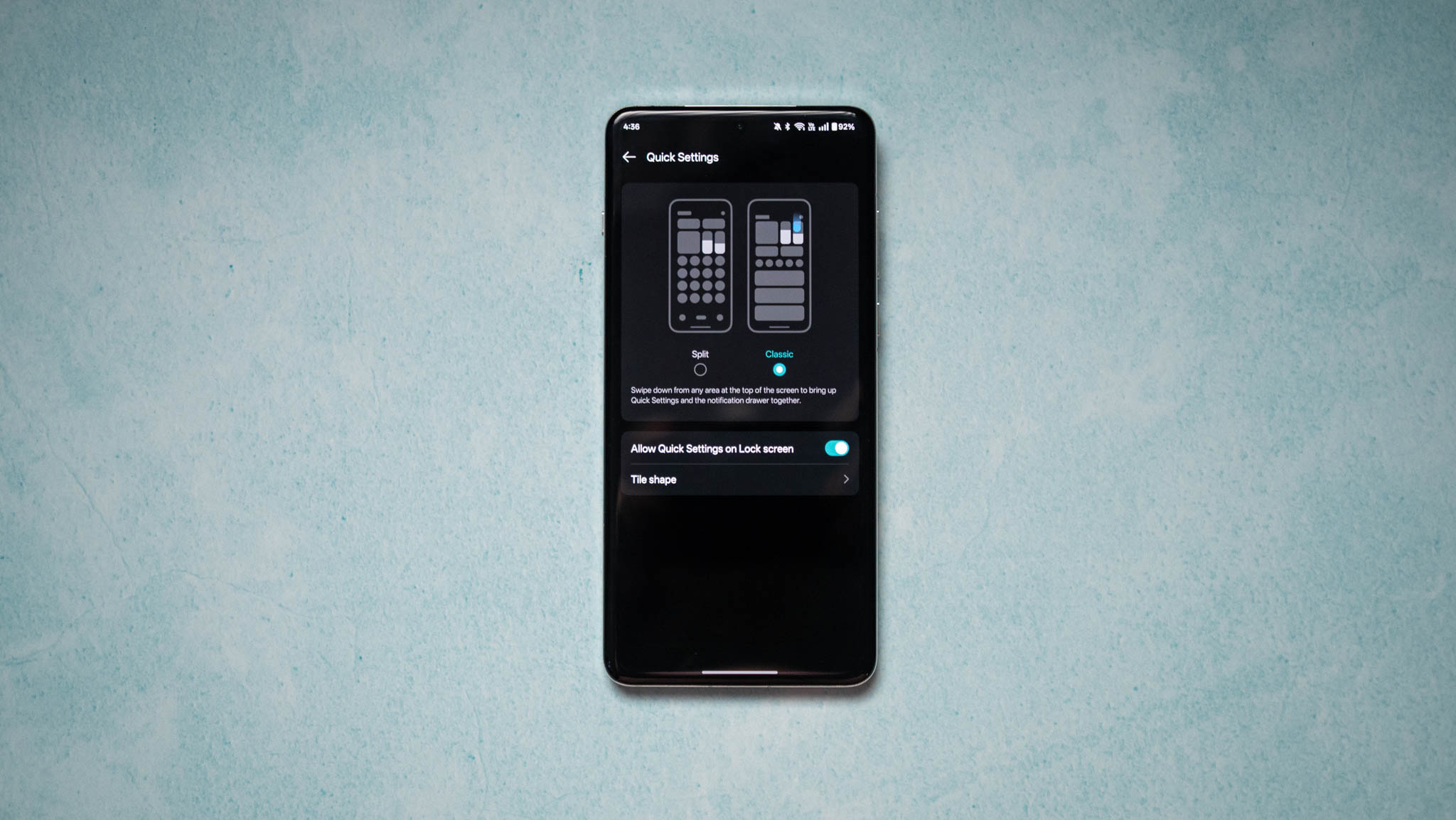
Talking about the notification shade, OxygenOS recently switched to a split notification pane with the toggles in their own section, and notifications getting a standalone pane. This is similar to iOS, and while other Chinese manufacturers also do this, I’m not a fan of the split shade.
I like having notifications and toggles in the same shade, and you can go back to this mode. Just head to your phone settings, go to the Notifications & Quick Settings menu, select Quick Settings, and choose the Classic option. Doing so will switch the shade back to a unified style.
Never Miss a Notification
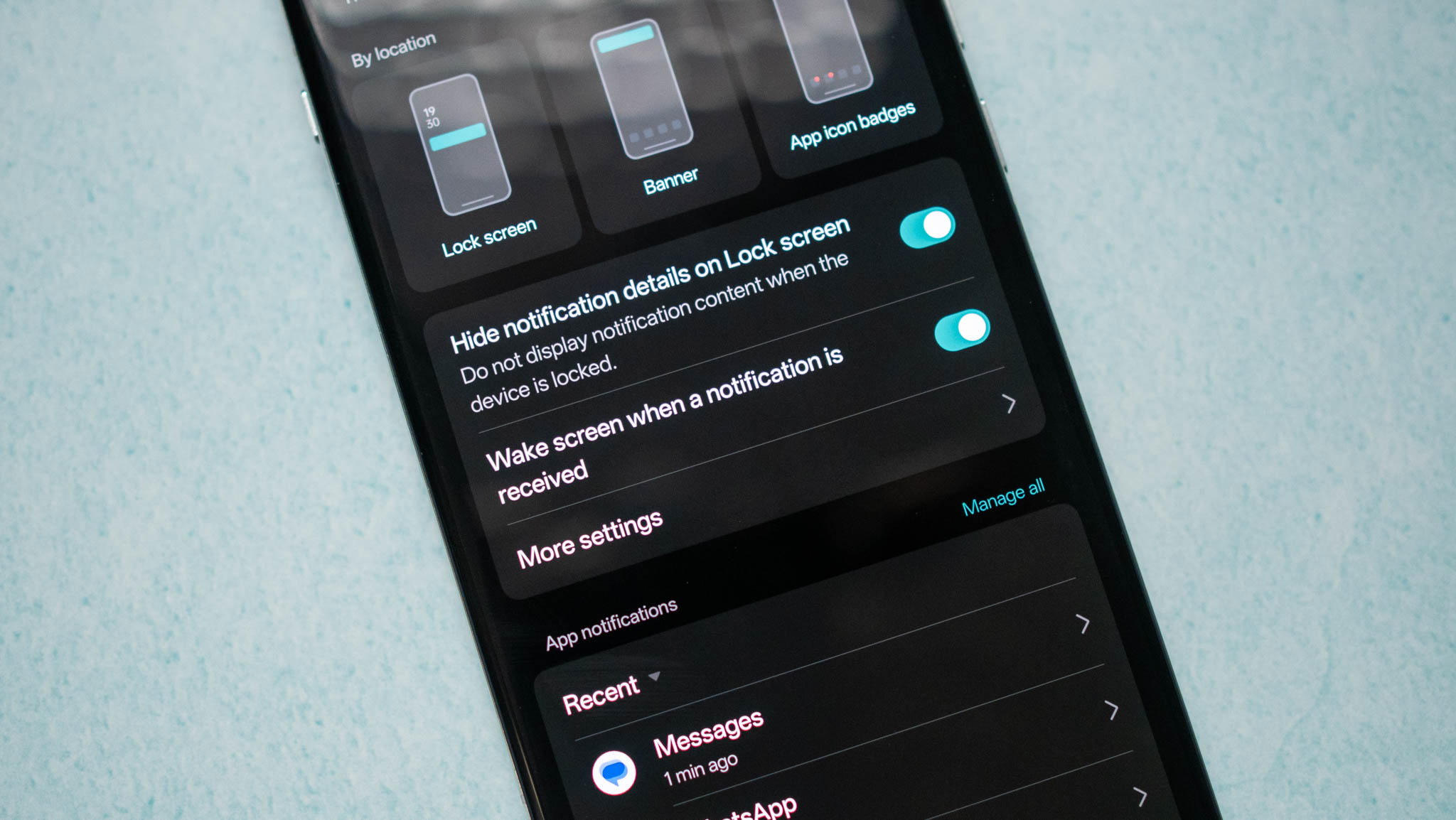
One of the best things about OxygenOS is the ability to wake screen whenever you get a notification. I like this instead of the always-on mode, as it allows me to view any incoming notifications without worrying about any undue battery use.
While you’re there, you should select enhanced notifications as well; doing so gives you Android’s suggested actions, and makes things that much easier.
Make the AMOLED Panel Shine
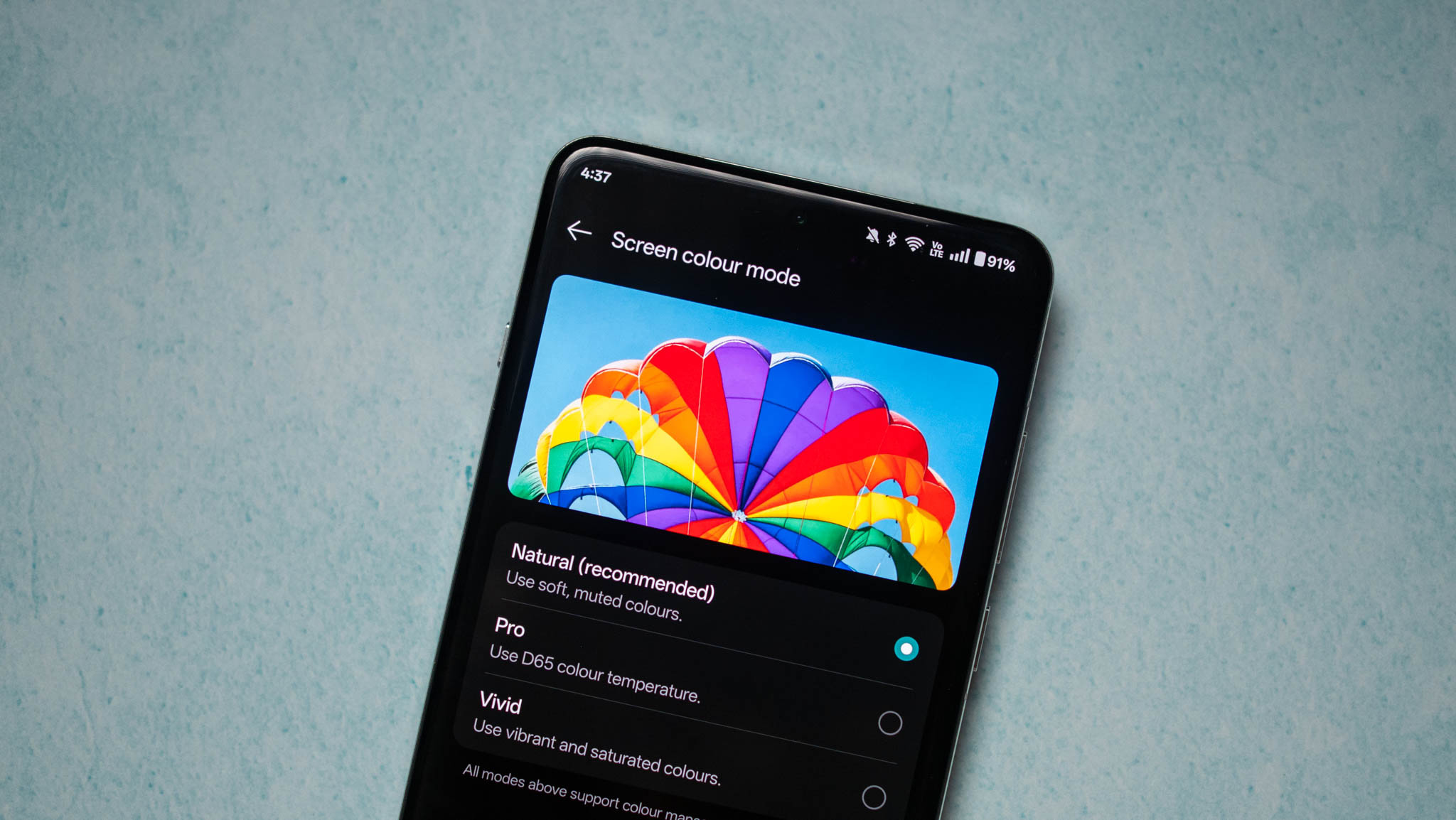
The OnePlus 13 has a vibrant AMOLED panel, and it is set to Natural out of the box. I like the mode; it has good colors without going overboard with the saturation, and if you like better calibration, you can switch to the P3-D65 color gamut by selecting the Pro mode.
And if you want vibrant colors with increased saturation, the Vivid mode is the one to choose. There’s also the option to manually adjust the color balance, so if you like the tonality to be on the warmer or cooler side, you can easily do so.
Mitigate Eye Strain
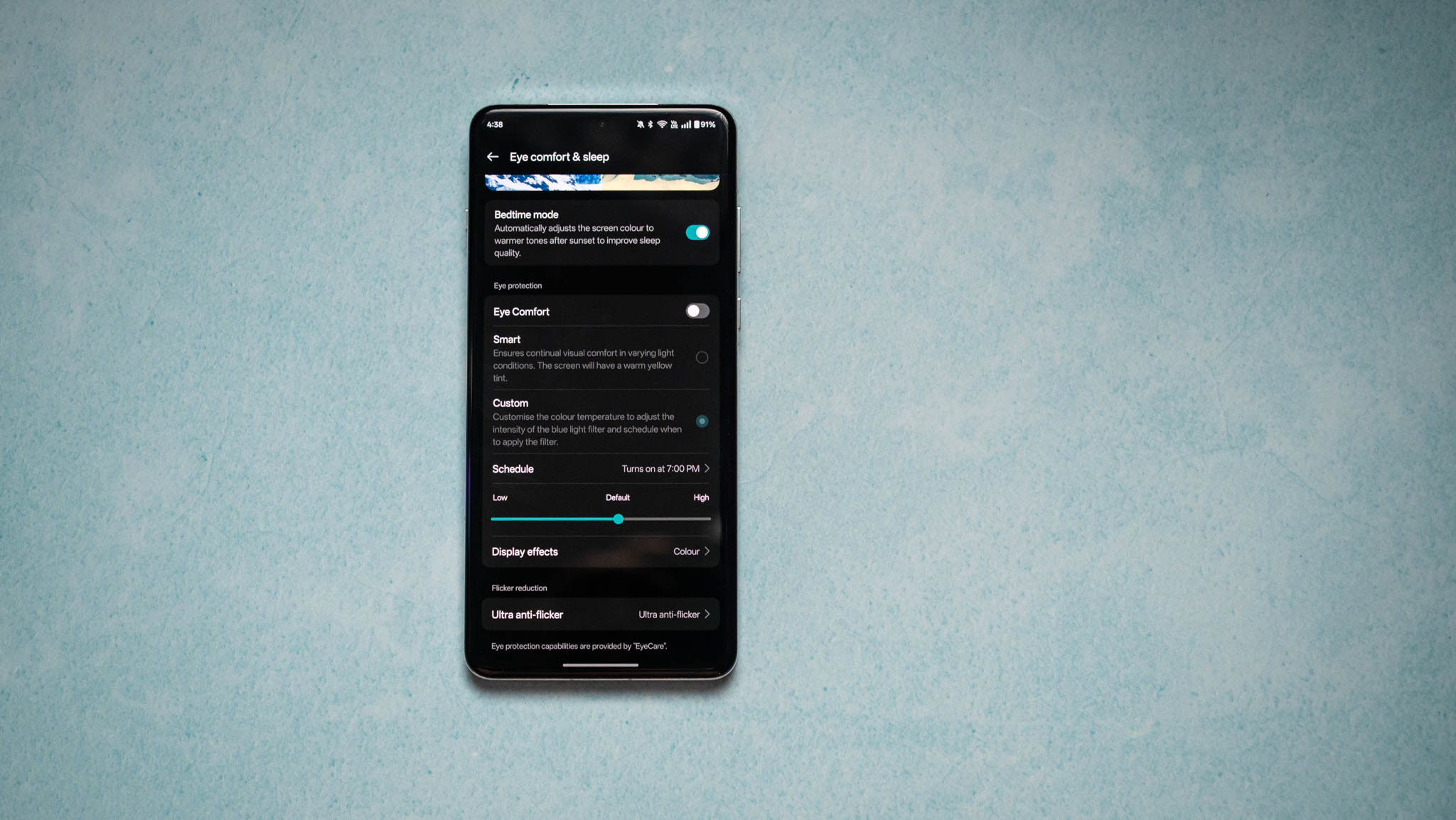
The OnePlus uses a BOE panel with 2,160Hz PWM dimming, and it makes a genuine difference if you’re switching from an iPhone, Pixel, or Galaxy device. If you’re sensitive to PWM dimming, I’d recommend enabling the Ultra anti-flicker mode in the settings.
There’s also a bedtime mode that automatically adjusts colors at night, enabling warmer hues to prevent blue light. I just set it to auto,but if you want a custom tint or schedule,you can easily configure it.
Unlock the Highest Resolution
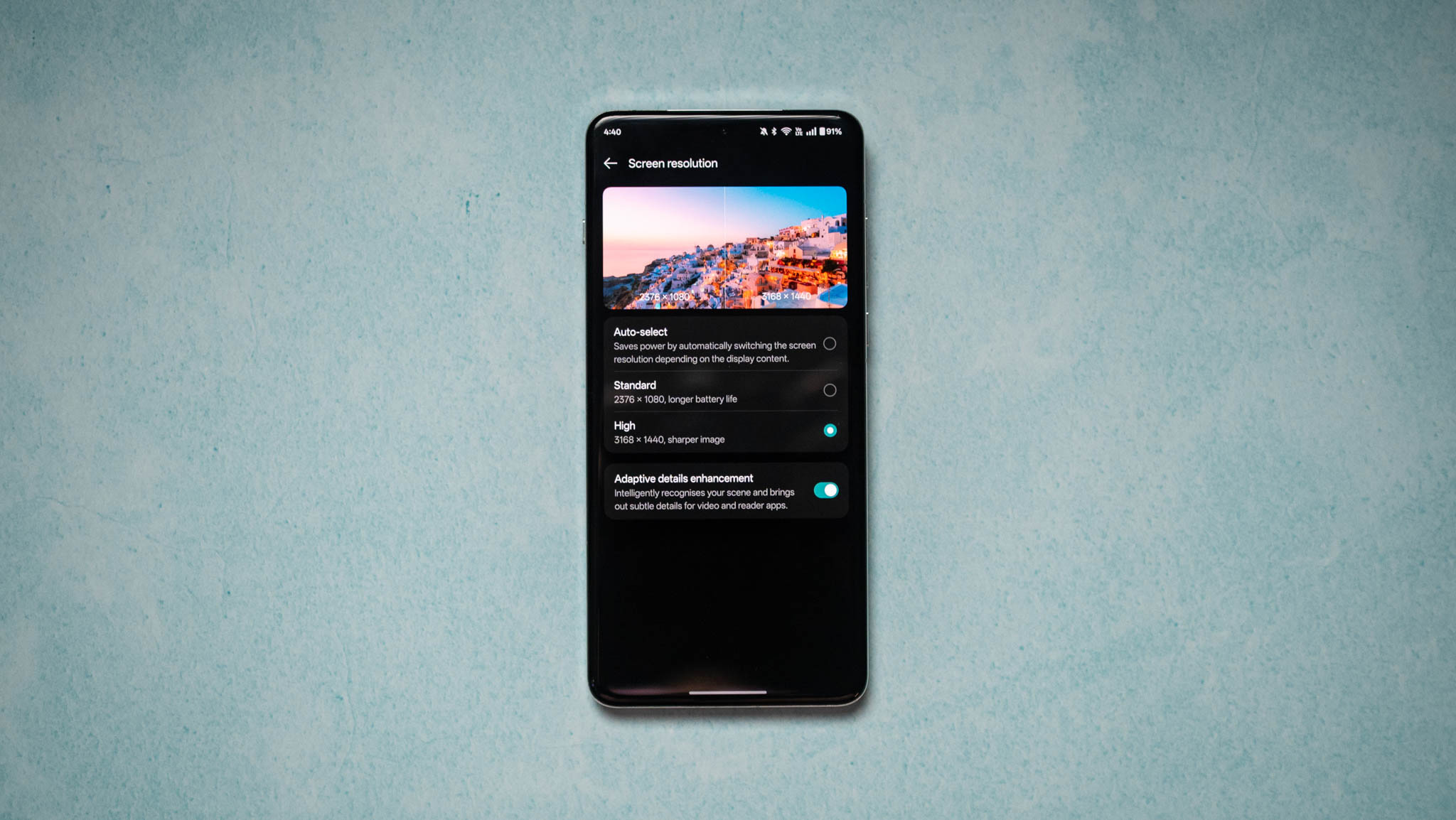
Similar to the last two years, the OnePlus 13 gets a resolution of 3168 x 1440. But to make the most out of the panel, you’ll need to go into the settings and change the resolution manually; it’s set to Standard (2376 x 1080) out of the box.
But once you set it to High, it’ll unlock the QHD+ resolution. Doing so uses more battery, so if you want to eke out battery life, I’d suggest toggling the Auto-select mode. Similarly, you’ll want to change the refresh rate to High to ensure the device enables 120Hz mode wherever possible.
Most games are still locked to 60fps, but switching to 120Hz in daily use makes a huge difference.
Tailor the Phone Just the way You Like It
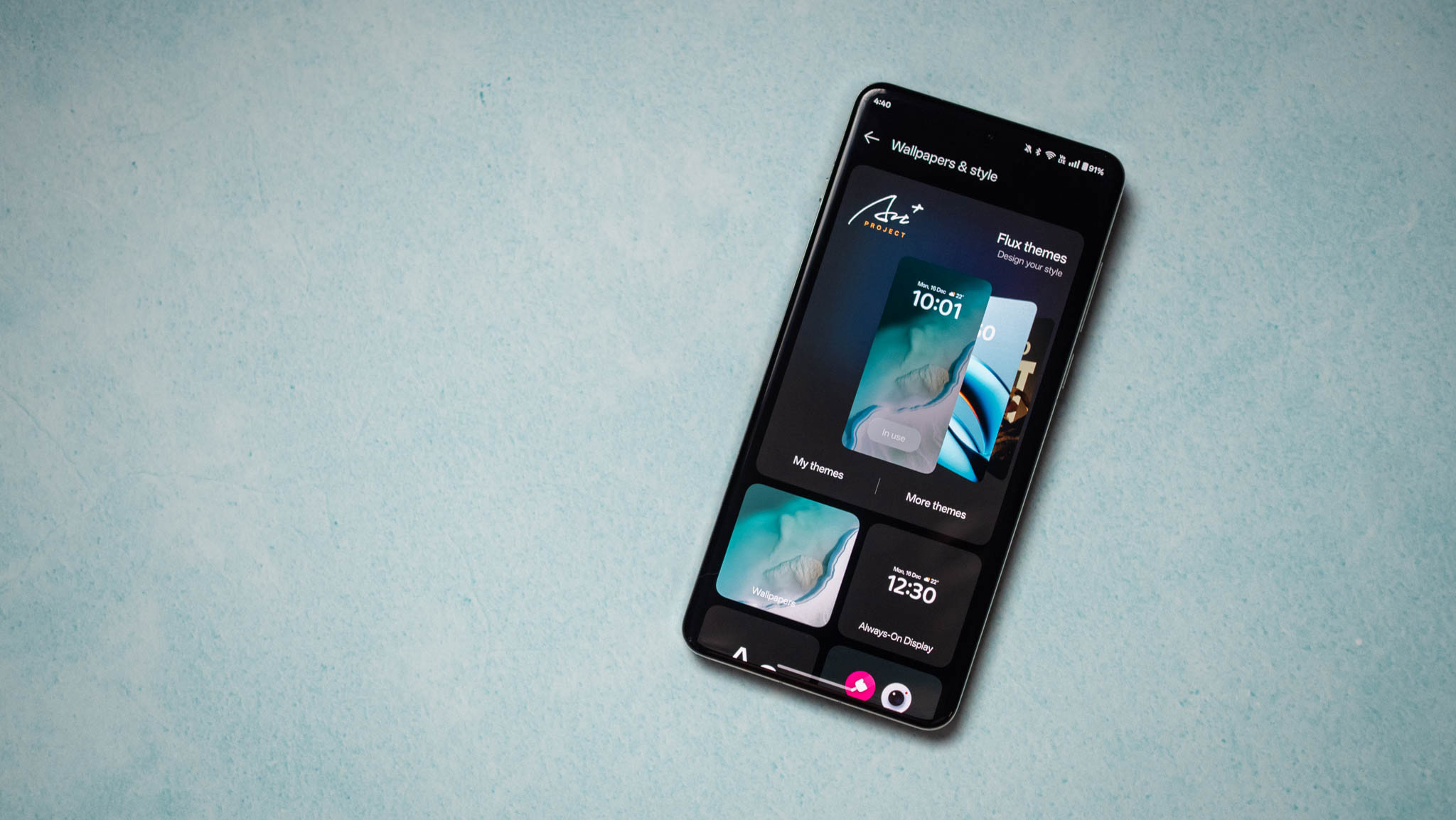
OxygenOS always exceled at customizability, and that’s no different with the OnePlus 13. If anything, you get an even better set of controls this time, including several stunning always-on styles, extensive icon tweaking, ability to change accent colors via Material You dynamic color picker, and so on.
What are your favorite OnePlus 13 tips and tricks? share your thoughts in the comments below!
