USB Tethering Is Faster Than Wi-Fi or Bluetooth for Connecting Android to Windows
In a column for MakeUseOf on Sunday Yadullah Abidi reports that tethering an Android phone to a Windows PC via USB cable provides significantly faster internet speeds than traditional Wi-Fi or Bluetooth methods.
Abidi tested three connection methods using a Samsung Galaxy S24 Ultra and an HP laptop running Windows 11. To establish a baseline, the phone’s direct cellular connection reached 244.33 Mbps download, 25.80 Mbps upload, and a ping of 23.67 ms.
When using a Wi-Fi hotspot, the average download speed dropped to 76.45 Mbps. While this remained sufficient for video calls and streaming, Abidi said that it left a large portion of the cellular connection’s capacity unused. He observed that hotspot performance is heavily influenced by the laptop's Wi-Fi adapter, local network congestion, and the chosen frequency band; switching from 2.4 GHz to 5 GHz can increase speeds.
Bluetooth tethering proved the slowest option, with download and upload speeds hovering around 1 Mbps and a ping of 190 ms. Abidi described the experience as an "exercise in patience," noting that the limited bandwidth created a severe bottleneck for modern web usage.
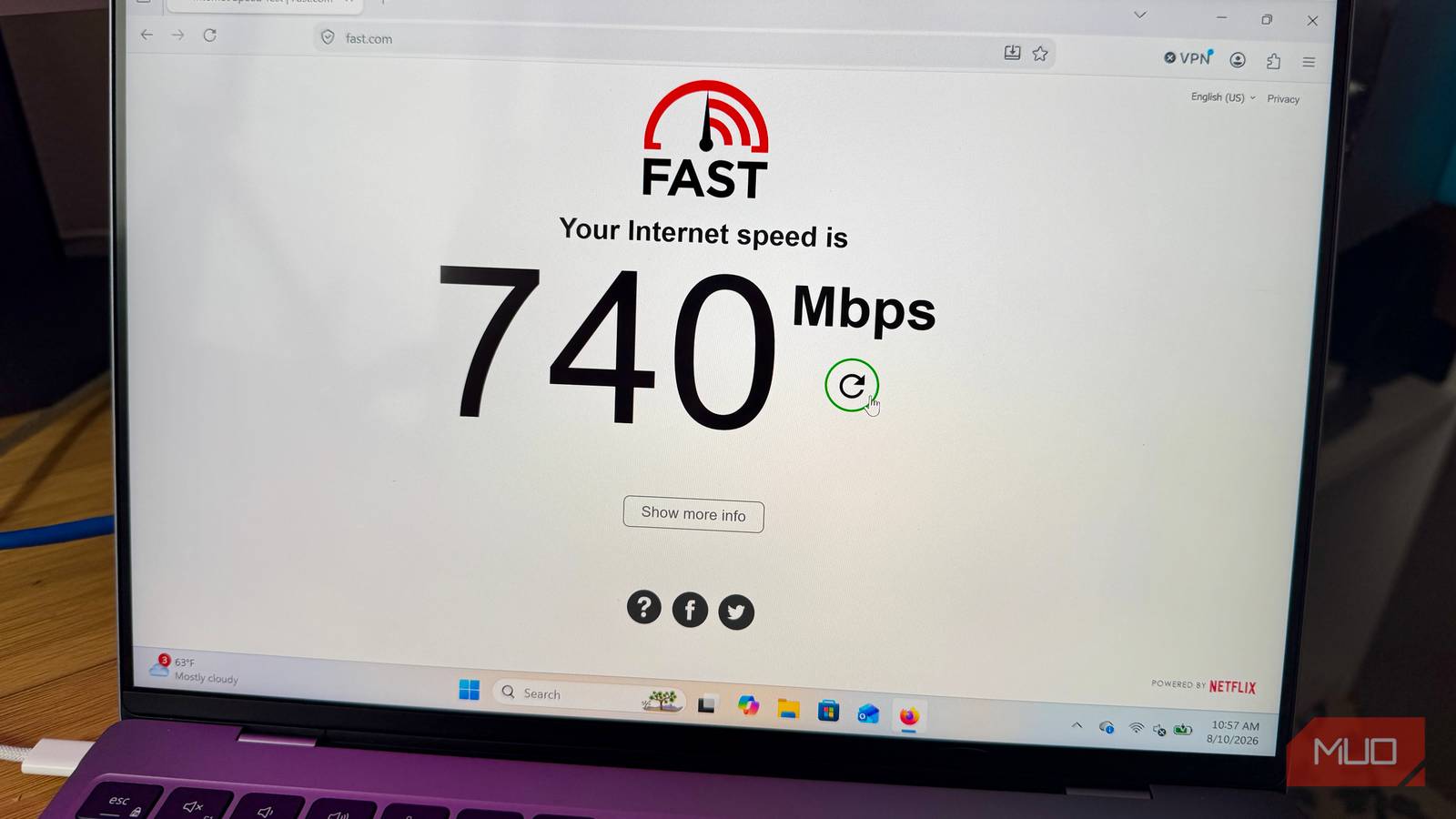
USB tethering, however, outperformed the other methods. The wired connection achieved an average download speed of 261.94 Mbps, with a ping of 25 ms. According to Abidi, this method is advantageous because it removes wireless interference and allows the laptop to charge the phone during use.
To use USB tethering, a user must connect the devices with a data-capable cable and enable the feature in the phone’s Mobile Hotspot and Tethering settings. For Bluetooth tethering, users must pair the devices, go to Settings > Bluetooth & devices > Devices on Windows 11, select their phone, click Join beside Personal Area Network (PAN), and choose Access Point.
Abidi recommends that users enable the "Metered connection" setting in Windows for both USB and Wi-Fi tethering to prevent the operating system from consuming excess mobile data for background updates. Before putting all that newfound bandwidth to work, he suggests heading to Settings > Network & internet > Ethernet, selecting the USB-tethered network, and enabling Metered connection.
"I’ll still use a Wi-Fi hotspot when I need to connect several devices, but for getting my laptop back online during the workday, USB tethering is my new default," Abidi wrote.