Samsung One UI 9: What the New Blue Status Bar Icon Means for Users
Following the deployment of the One UI 9 update—built on the Android 17 framework—Samsung users have reported the appearance of a persistent blue icon in the status bar. As noted by Abhijeet Mishra for SamMobile, this indicator serves as a new location privacy feature designed to provide transparency regarding when an application is accessing device location data. Users may find it takes time to notice these minor adjustments following a major software update.
The icon appears at the top of the screen whenever an app utilizes location services. Because various applications, such as weather or navigation tools, may access this data for different purposes, the indicator may remain visible even if a user is not actively navigating or using a maps application. This addition allows users to monitor background location activity that may have been previously granted during initial app setup.
Identifying Active Apps
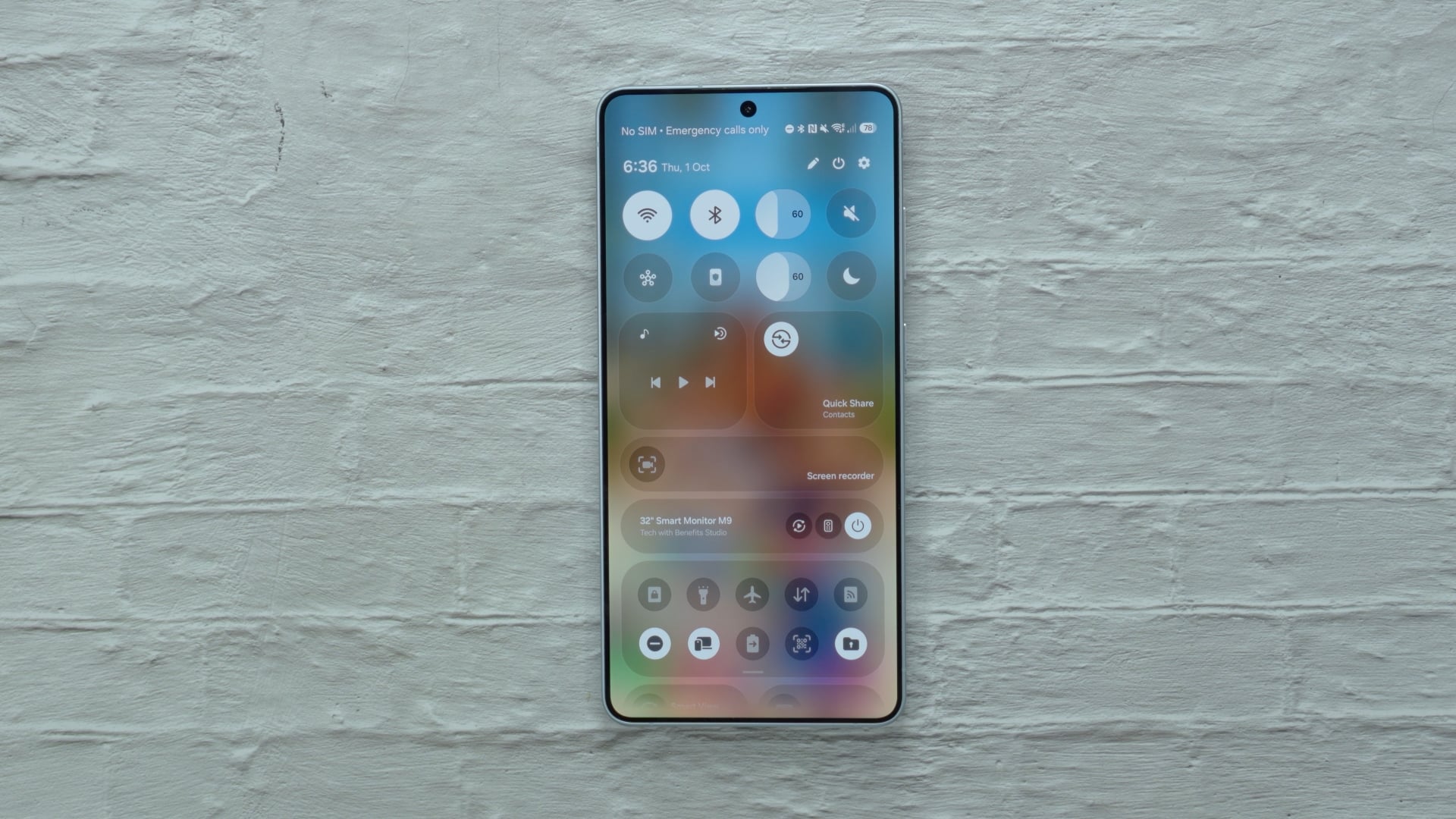
To determine exactly which application has triggered the blue status bar icon, users can open the Quick Panel on their device. By tapping on the blue indicator directly, the phone will display the specific app currently accessing location information. If the notification originates from an application currently in use, the reason for the data request may be obvious. This feature eliminates the need to guess which software is responsible for the activity, providing a clear starting point for users who wish to evaluate whether a particular app requires such access.
Managing Location Permissions
If a user discovers an app is accessing location data unnecessarily, settings can be adjusted to restrict or revoke these permissions. By going to Settings, selecting Location, and then choosing App permissions, users can manage individual app access. Available options include:
- Allowing access only while the app is in use.
- Limiting access so the app must ask each time.
- Blocking access entirely by selecting “Don’t allow.”
- Permitting access at all times, including in the background.
For applications that do not require constant tracking, selecting “Allow only while using the app” is recommended to maintain privacy while ensuring the software continues to function as intended. If a specific tool has no valid reason to track your location, you should select “Don’t allow” to terminate access.