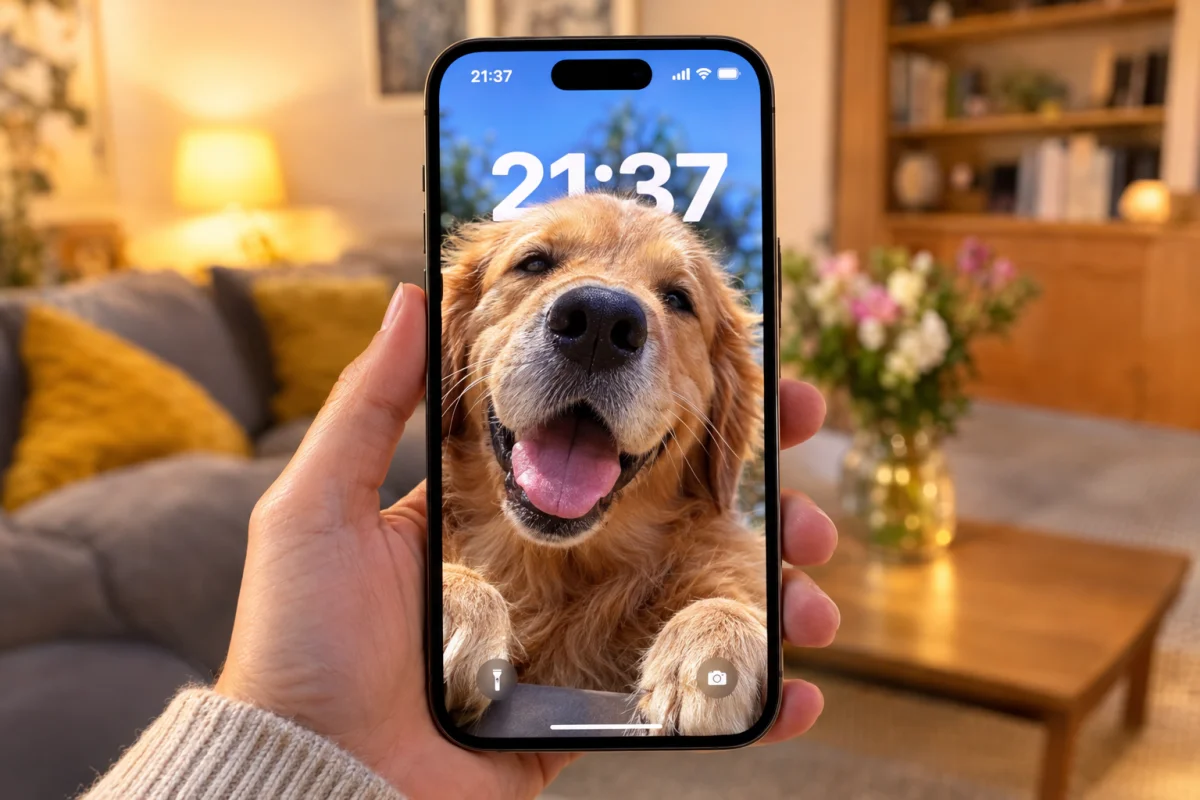
How to Use 3D Photo Lock Screen Wallpaper on iPhone with Spatial Scene
Since iOS 26, iPhone 12 and newer models can transform a photo into a 3D wallpaper on the lock screen, making the subject appear to float above the background when tilting the device.
This feature, called “Spatial Scene,” is available in the current iOS 27 and requires users to navigate to Settings > Wallpaper, scrolling to reveal the dedicated tab.
The Spatial Scene effect separates the subject from the photo’s background, animating both layers as the phone moves. The subject seems to detach from the decor, though it remains an optical illusion that follows the device’s orientation, not a literal projection out of the screen.
Apple introduced the function in June 2025 during its annual developer conference and released it with iOS 26 on September 15, 2025, according to Selectra. Both the 3D effect and an adaptive clock that adjusts to the free space in the image remain features in iOS 27.
This feature should not be confused with the older “Depth Effect,” which is limited to layered photos and keeps the image static while only placing the subject in front of the time. The Spatial Scene, in contrast, responds to phone movements.
To create a Spatial Scene, users must open Settings, then Wallpaper, and select “Add New Wallpaper.” From the Photos app, they must scroll the top bar to the right to reveal the “Spatial Scene” tab, choose a photo, and wait for the “Generating Spatial Scene” message to clear before tapping “Add.”
The wallpaper can then be set as a “Set as Wallpaper Pair” or “Customize Home Screen,” but the 3D effect is exclusive to the lock screen, while the home screen remains static. The iPhone 11 and second-generation iPhone SE receive iOS 26 but do not support this feature.
Selectra provides the step-by-step guide for activating the Spatial Scene wallpaper. The feature is only compatible with an iPhone 12 or a newer model running iOS 26 or later. Users can check their iOS version in Settings > General > About to confirm eligibility before attempting to enable the effect.