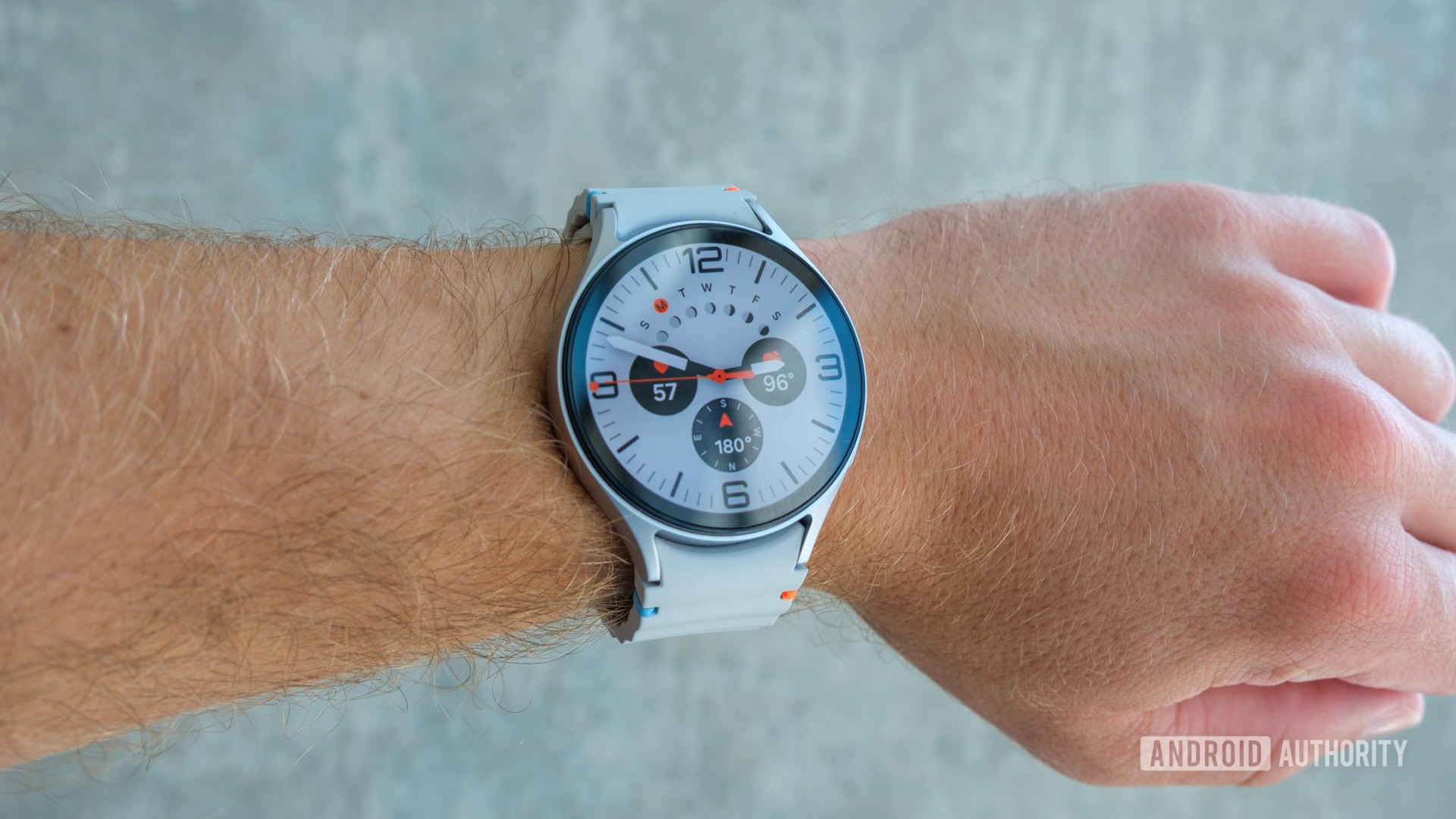
Galaxy Watch Battery Drain Issues After Recent Updates
The latest production push for Samsung Galaxy Watches has hit a snag, with a significant volume of users reporting abnormal battery drain following recent software updates. For the power user, this isn’t just a convenience issue; it’s a regression in power efficiency that threatens the utility of the wearable as a reliable health and notification endpoint.
The Tech TL;DR:
- The Trigger: Recent software updates, including reports regarding One UI 8, have introduced battery regressions for a subset of Galaxy Watch users.
- The Culprits: High screen brightness, aggressive background processes, frequent notification wake-ups, and continuous GPS/Bluetooth polling.
- The Fix: Optimization of system settings or advanced “debloating” via ADB shell commands to disable power-hungry system agents.
The Architecture of Power Drain: Identifying the Bottleneck
Battery longevity in wearables is a zero-sum game between feature set and Milliampere-hour (mAh) capacity. When a software update triggers abnormal drain, the issue usually resides in the interaction between the OS and the hardware abstraction layer. According to data from Battery Spotlight, the primary drivers of this energy leakage are high screen brightness and the frequency of notifications, which force the device to wake from low-power states more often than intended.
Beyond the screen, the wireless stack is a constant drain. Continuous Bluetooth connections and GPS active-state polling create a persistent load on the SoC. For users experiencing these regressions, the first line of defense is a manual reset of the connection stack. For Wear OS devices, the path is Settings > Connections > Bluetooth, where toggling the radio off and on can clear stale connection states. Tizen-based legacy watches follow a similar logic via Settings > Connections > Bluetooth after accessing the home screen’s Power/Home key.
When software optimizations fail to stabilize the drain, enterprise deployments often require the intervention of [Managed Service Providers] to audit device configurations and ensure that corporate app payloads aren’t exacerbating the power leak.
Hardware Efficiency and Mitigation Matrix
To understand the impact of specific settings on the battery’s discharge curve, we can map the variables identified across Samsung Support and Android Authority. The following table breaks down the primary drivers of battery attrition and the corresponding mitigation strategies.
| Power Variable | Impact on SOC/Battery | Mitigation Strategy |
|---|---|---|
| Screen Brightness | High (Direct LED draw) | Reduce brightness levels; limit Always-On Display (AOD) |
| Background Apps | Moderate (CPU cycles/RAM) | Close unused applications; review app permissions |
| Connectivity (GPS/BT) | High (Radio power consumption) | Limit location services; toggle Bluetooth to reset sync |
| Notification Frequency | Moderate (Frequent CPU wake-ups) | Filter notifications to essential alerts only |
| Software Version | Variable (Bug-driven regression) | Install latest patches or utilize ADB debloating |
The Implementation Mandate: Advanced Debloating via ADB
For developers and power users who find the standard UI toggles insufficient, the solution moves from the settings menu to the Android Debug Bridge (ADB). Reports from the XDA Forums community suggest that certain system agents—specifically those handling updates and synchronization—can be disabled to reclaim battery life. This is particularly relevant for those reporting that One UI 8 has negatively impacted their device’s endurance.

By targeting the com.sec.android.soagent and com.wssyncmldm packages, users can stop the system from polling for updates in the background, which is a known source of erratic power consumption. The following CLI commands should be executed via a workstation connected to the watch:
# Disable the Samsung Update Agent adb shell pm disable-user --user 0 com.sec.android.soagent # Disable the Sync Manager adb shell pm disable-user --user 0 com.wssyncmldm # CRITICAL: Disable ADB debugging after execution to prevent further drain # (This is handled via the watch's Developer Options menu)Executing these commands effectively removes the overhead of these services without requiring a full custom ROM. Yet, This proves vital to remember that ADB debugging itself consumes power; leaving it active is a common mistake that negates the gains of debloating. For those who are not comfortable with the command line or find that their hardware is failing regardless of software tweaks, seeking professional aid from a [Consumer Electronics Repair Shop] for a physical battery diagnostic is the recommended path.
Evaluating the Update Cycle and Stability
The tension between shipping new features and maintaining stability is evident in this rollout. While Samsung and Google aim for a robust Wear OS experience, the introduction of new APIs and background services often leads to unforeseen battery regressions. The current situation highlights the necessity of checking battery usage statistics to pinpoint specific energy-hungry apps before assuming a total hardware failure.
For those troubleshooting these issues, referencing the Android Developer Documentation or searching Stack Overflow for specific package behavior can provide deeper insight into why certain system agents are spiking CPU usage. The long-term solution requires a shift toward more aggressive power management at the kernel level, ensuring that update services do not override the device’s deep-sleep states.
As wearables evolve into critical health monitors, the tolerance for “abnormal drain” vanishes. We are moving toward an era where the watch must be an invisible utility, not a device that requires mid-day charging due to a botched production push. The ability to manually prune system services via ADB is a temporary workaround, but the industry needs a more transparent approach to power profiling in public software releases.
Disclaimer: The technical analyses and security protocols detailed in this article are for informational purposes only. Always consult with certified IT and cybersecurity professionals before altering enterprise networks or handling sensitive data.