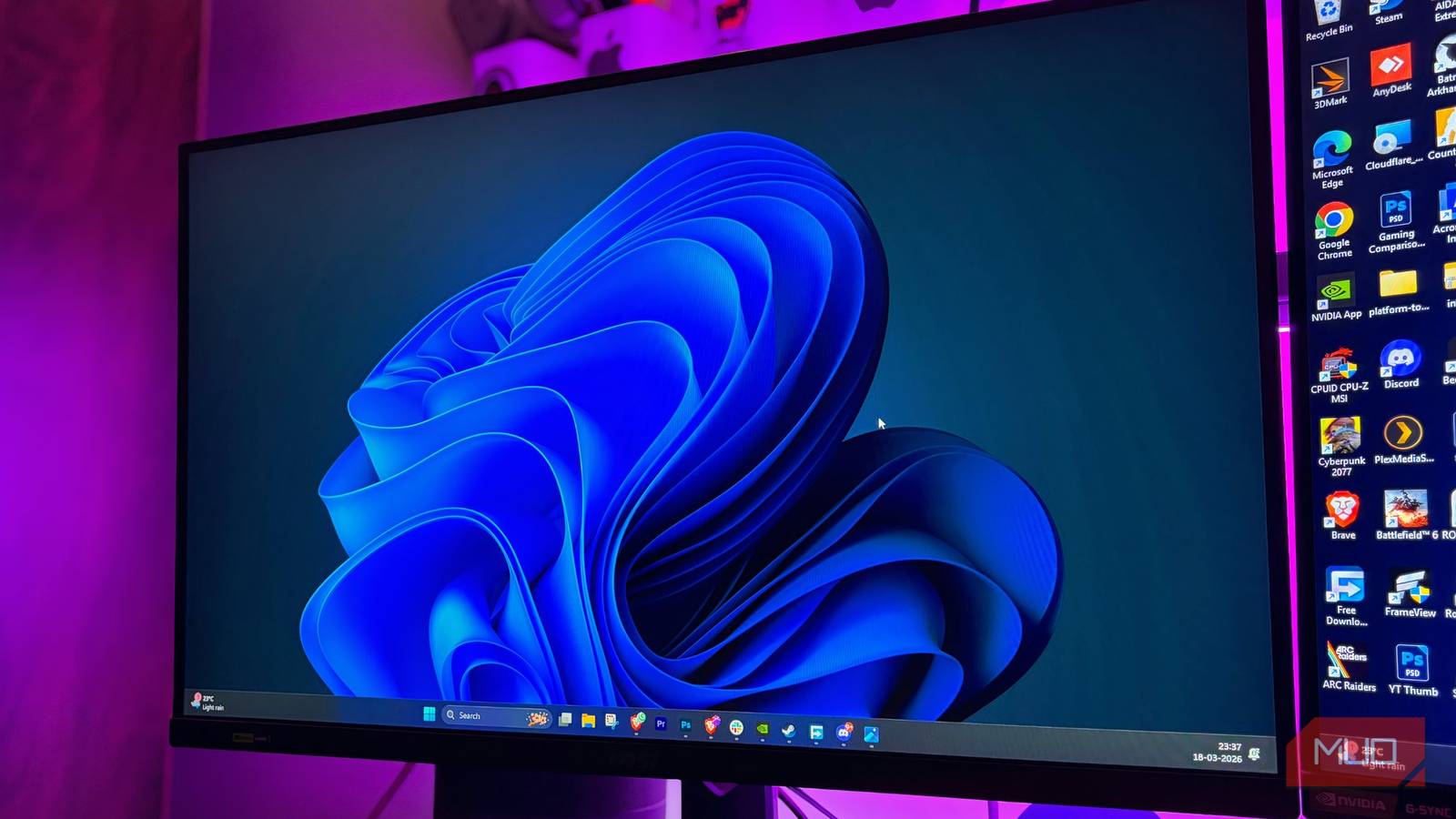
Better Than VSync: How to Fix Screen Tearing Using This Hidden Monitor Feature
Most modern display systems suffer from a latent performance bottleneck caused by the reliance on legacy VSync synchronization, even when hardware-level solutions like Variable Refresh Rate (VRR) are available. According to recent technical analysis, users frequently run high-refresh monitors with these native tearing-mitigation technologies disabled, defaulting instead to software-based VSync that introduces significant input lag and frame-pacing inconsistencies.
The Tech TL;DR:
- Input Latency: VSync forces a frame buffer queue that can add 30ms to 50ms of input delay, whereas G-Sync or FreeSync offloads synchronization to the display controller to minimize latency.
- Configuration Gap: Native VRR protocols are often buried in OSD (On-Screen Display) menus rather than OS-level settings, leading to widespread misconfiguration.
- Enterprise Impact: For workstations requiring high-fidelity visual output, mismanaged sync settings can lead to “micro-stutter” in CAD or GPU-accelerated rendering pipelines, negatively impacting workflow efficiency.
The Architectural Failure of Software-Level VSync
VSync functions as a brute-force synchronization mechanism by locking the GPU’s frame output to the monitor’s refresh rate. As documented in the Khronos Group OpenGL documentation, this process requires the GPU to wait for the monitor’s vertical blanking interval, creating a rigid buffer that prevents screen tearing but introduces a massive bottleneck in the rendering pipeline. In high-performance computing environments, this “wait state” is the primary contributor to perceived input lag, effectively rendering the GPU idle while the display buffer refreshes.


Modern display controllers now utilize adaptive synchronization, such as VESA Adaptive-Sync or proprietary implementations like NVIDIA G-Sync and AMD FreeSync. These technologies shift the burden of timing from the software driver to the hardware scaler. By allowing the display to dynamically adjust its refresh interval to match the GPU’s frame delivery time, the system eliminates the need for a rigid buffer. Despite this, many users—and even some enterprise system integrators—fail to verify that these settings are enabled at the monitor’s hardware level.
Implementation Mandate: Verifying Your Display Pipeline
To ensure your hardware is operating in an adaptive-sync state rather than a VSync-locked state, you must verify both the driver configuration and the physical monitor settings. If you are managing a fleet of workstations, these settings should be enforced via group policy or centralized display management tools. For developers testing high-frame-rate applications, use the following CLI verification for your display adapter settings:
# Check current display refresh rate and sync status via xrandr (Linux/X11)

xrandr --verbose | grep "rate"
# Verify NVIDIA G-Sync state via nvidia-smi
nvidia-smi -q -d PERFORMANCE
If you encounter persistent display artifacts or inconsistent frame pacing that persists despite hardware-level configuration, your firm may require a specialized audit. For businesses scaling high-end design departments, engaging an IT Infrastructure Consultant is often necessary to align monitor firmware with GPU driver versions to ensure full compatibility with adaptive sync protocols.
Framework C: The Sync-Technology Matrix
To understand why VRR is the superior choice for modern workflows, consider the following performance comparison against legacy and software-defined synchronization methods:
| Technology | Latency Impact | Frame Pacing | Primary Use Case |
|---|---|---|---|
| VSync (Software) | High (30ms+) | Variable (Stutter) | Legacy Compatibility |
| VRR (G-Sync/FreeSync) | Negligible (1-2ms) | Consistent | Professional/Gaming |
| Uncapped (No Sync) | Lowest | Poor (Tearing) | Benchmarking |
As noted by lead maintainers in the Linux kernel graphics stack, the transition from software-based wait-loops to hardware-assisted refresh signaling represents a fundamental shift in display architecture. Maintaining these settings requires vigilance, particularly when deploying new hardware. If your organization is struggling with hardware-software synchronization issues, Managed Service Providers specializing in workstation optimization can provide the necessary oversight to prevent “display drift” and ensure SOC 2 compliance in environments where visual precision is a core requirement.
The Path Forward for Display Architecture
The reliance on legacy VSync is a relic of an era where display controllers were passive receivers of data. Modern display panels now act as active participants in the render-to-display pipeline. Moving forward, the industry is trending toward automated EDID (Extended Display Identification Data) handshakes that negotiate synchronization protocols without user intervention. Until that standardization is universal, the onus remains on the system administrator to verify that the hardware is configured to bypass software-level latency.

For firms managing high-performance visual pipelines, the cost of misconfiguration is not just visual tearing, but wasted compute cycles and reduced employee productivity. Ensuring your hardware is correctly provisioned is the first step toward a more responsive and efficient digital workspace.
Frequently Asked Technical Questions
- Q: Does enabling VRR/G-Sync affect my GPU’s power consumption?
- A: Yes, marginally. By removing the VSync wait-loop, the GPU is free to render frames as quickly as the application allows, which can increase GPU load and power draw compared to a VSync-locked state that forces the GPU into idle intervals.
- Q: Why does my monitor still show tearing even with VRR enabled?
- A: Tearing occurs when the frame rate exceeds the monitor’s maximum refresh rate. Ensure you have a frame rate limiter active in your application settings to keep the render rate within the VRR window of your display.
Disclaimer: The technical analyses and security protocols detailed in this article are for informational purposes only. Always consult with certified IT and cybersecurity professionals before altering enterprise networks or handling sensitive data.