
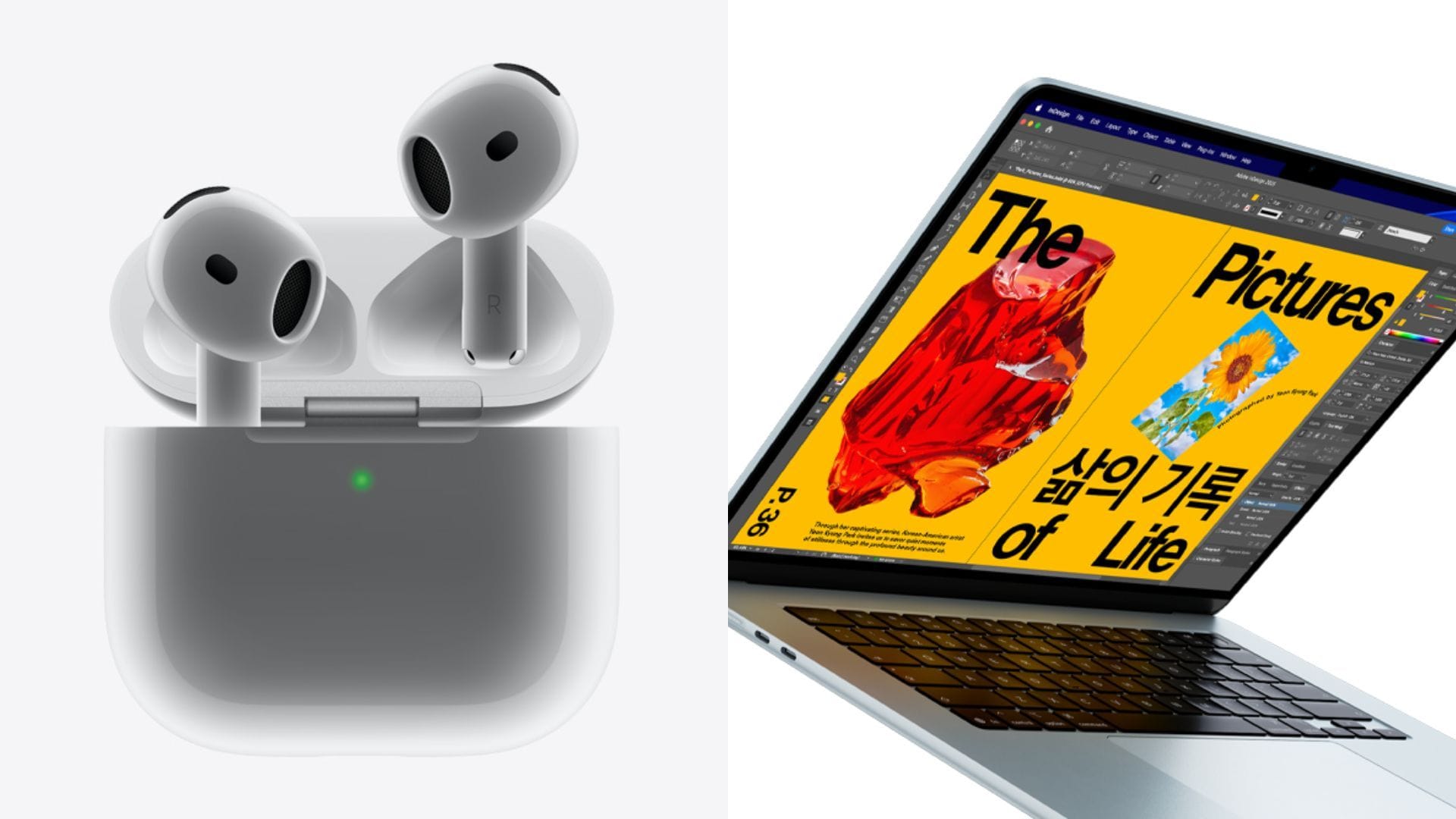
AirPods 4 to Laptop: How to Connect to Windows & Mac Explained
Connecting AirPods 4 to Laptops: A Comprehensive Guide
Apple’s AirPods 4, released in 2024, have become a popular choice for wireless audio, and users frequently seek to connect them to laptops for a seamless listening experience. While automatic pairing is possible within the Apple ecosystem, connecting to Windows laptops requires a manual process. This article details how to connect AirPods 4 to both Mac and Windows laptops.
Automatic Pairing with Macs
If your AirPods 4 are already paired with your iPhone and your Mac laptop is signed in to the same iCloud account, the pairing process is often automatic. Simply place the AirPods in your ears, open the Control Center on your Mac, and select Bluetooth to connect the devices, according to Apple support documentation.
Manual Pairing with Macs
For users who haven’t paired their AirPods 4 with an iPhone or are not logged into iCloud on their Mac, a manual pairing process is necessary. To initiate this, navigate to System Settings via the Apple Menu. Ensure Bluetooth is enabled. With the AirPods in their charging case and the lid open, double-tap the front of the case until the status light flashes white. Alternatively, press and hold the setup button on the back of the case until the light also flashes white, signaling pairing mode. The AirPods will then appear in the list of available Bluetooth devices on your Mac, allowing you to connect.
Connecting to Windows Laptops
The process for pairing AirPods 4 with Windows 10 or Windows 11 laptops is similar to the manual Mac setup. Begin by placing the AirPods in their charging case. On your Windows laptop, go to Settings, then select “Bluetooth & devices.” Ensure Bluetooth is turned on, and click “Add device.” In the dialog box that appears, select “Bluetooth.” With the charging case open and the AirPods inside, double-tap the front of the case to activate the flashing white light, indicating pairing mode. Locate the AirPods in the list of available devices on your laptop and click to connect.
Once connected, users can enjoy audio across various applications on their laptops. The core process for connecting AirPods 4 to a laptop—activating pairing mode via double-tapping the case—remains consistent across operating systems.