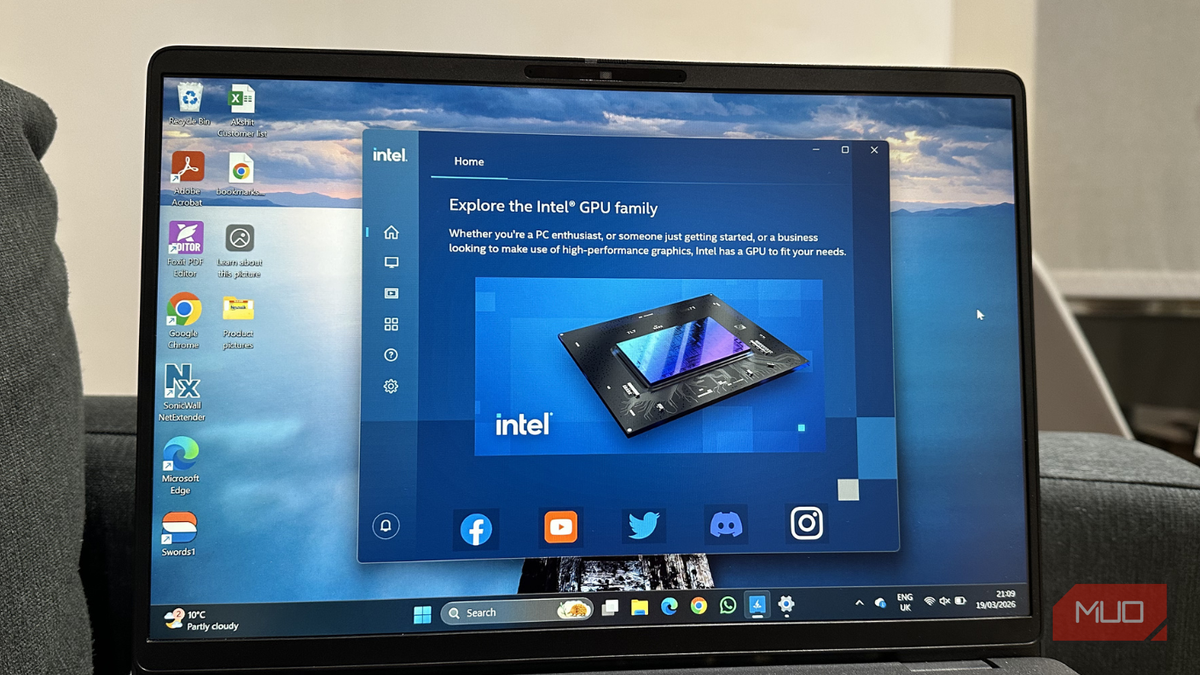
For months, a nagging sense of underperformance plagued my PC. Despite possessing seemingly adequate hardware – a capable GPU and sufficient RAM – the system felt sluggish, even for everyday tasks like video editing and multitasking. It wasn’t a crash or a clear malfunction, but a persistent feeling that the machine wasn’t living up to its potential.
Initial troubleshooting steps – closing background applications, updating drivers, uninstalling unused programs, and tweaking in-app settings – yielded no improvements. I attributed the issue to software optimization problems or quirks within Windows. However, a deeper dive into system settings revealed a hidden culprit: the Power Mode.
Windows PCs offer a Power Mode setting, often buried within the system settings, that controls how the system balances performance and power consumption. By default, this is typically set to “Balanced” or “Best Power Efficiency.” These modes prioritize energy conservation by underclocking the CPU and GPU during less demanding tasks. Although seemingly beneficial, this approach prioritizes efficiency over raw performance. As explained by MakeTechEasier, VRAM, or Video Random Access Memory, is dedicated to the graphics card and crucial for graphically intensive work, and its full utilization is key to a smooth experience.
When launching a game or a demanding application, the GPU doesn’t immediately ramp up to its full potential in Balanced mode. Instead, it gradually increases performance, leading to inconsistent frame rates and lower peak performance. This delay creates the sensation of a less responsive system. Switching to “Best Performance” or “Maximum Performance” instructs the CPU and GPU to operate at higher speeds whenever needed.
The impact of this change was immediately noticeable. The system felt significantly faster and more responsive. Games that previously exhibited inconsistent frame rates and occasional stutters now ran with greater stability. The improvement extended beyond gaming. video editing and playback became smoother, and everyday tasks felt snappier. The most surprising aspect wasn’t simply the increased performance, but its consistency. The GPU no longer hesitated or ramped up late when tasked with demanding operations.
Adjusting the Power Mode on a Windows PC is straightforward. Navigate to Settings, then System, then Power & battery, and finally Power Mode. Select “Best Performance” from the dropdown menu. I’ve configured “Best Performance” for when the PC is plugged in and “Balanced” for battery operation, switching to “Best Performance” on battery only during dedicated gaming sessions to mitigate battery drain.
It’s important to note that “Best Performance” mode can generate more heat. Users with older systems or laptops prone to overheating may require to revert to “Balanced” mode. According to How-To Geek, as games become more demanding, the amount of VRAM needed increases, and choosing the right GPU RAM is crucial.
Discovering the Power Mode setting prompted further investigation into potential performance bottlenecks. I found that application-specific settings can sometimes override GPU behavior. Programs might not utilize the dedicated GPU properly if a system has integrated graphics, hindering peak performance. Driver updates can occasionally reset key settings, inadvertently reverting the system to a lower performance mode. Background applications, such as recorders and monitoring tools, can also consume GPU resources without being readily apparent.
The ease with which such a critical setting could be overlooked was striking. Months were spent assuming the GPU wasn’t performing optimally, when in reality, it was being constrained by a single setting designed for efficiency. It served as a reminder that default settings don’t necessarily represent the best configuration, and that a system’s true capabilities may remain untapped until unlocked.
If your PC is underperforming, consider exploring system settings before resorting to hardware upgrades. A solution may be hidden within a simple setting that has yet to be examined.
Leave a Reply