
google Maps Just Got Smarter: 5 Essential Settings to Optimize Your Journeys
Mountain View, CA – Google Maps is more than just a navigation app; it’s a powerful tool for planning and executing travel, and recent features are making it even more useful. Futurezone reports on five key settings within Google Maps that users should leverage to enhance their experience, from proactive travel time monitoring to accessibility information. Here’s how to unlock the full potential of the app:
#1 Check Future Travel Times
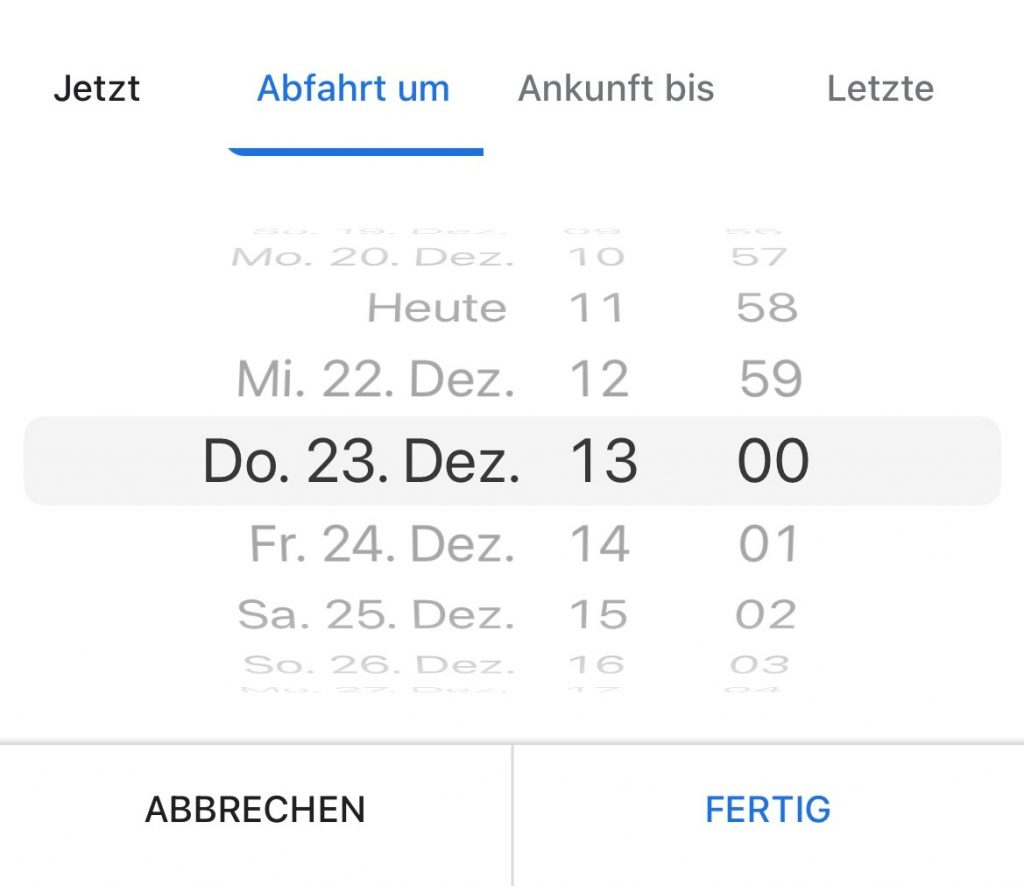
Google Maps allows users to preview travel times for future dates and times. This feature is invaluable for planning trips and anticipating potential delays.
To use it, enter your starting point and destination as usual.
Tap the “Depart at” or “Arrive by” option. Select a future date and time.
Adjust the starting point in the upper line if needed.
Use the drop-down menu to select your desired departure or arrival time. Review the displayed travel time and route for your chosen mode of transportation.
#2 Regularly Monitor Travel Time
Staying informed about potential disruptions is crucial. Regularly checking travel time leading up to your departure allows you to react to traffic jams or train failures.
#3 Stay Up-to-Date wiht Notifications
Unexpected events like construction or accidents can significantly impact travel. Google Maps offers customizable notifications to keep you informed. (Tested on a Samsung Galaxy S21 FE):
Open Google maps and tap your user profile symbol (top right).
Select “Settings.”
Scroll down to “Notifications” then “Mobility.”
Enable “Public transport (n) V-information and line plans” for updates on local transport changes.
Activate “Traffic through events” to receive alerts about roadblocks and their impact on traffic.
#4 Find Accessible Locations
Google Maps provides accessibility information to assist users with mobility needs. A simple setting displays details about wheelchair accessibility, suitable seating, and available restrooms. Open Google Maps and tap your profile symbol (top right), then go to “Settings.”
Locate and select “Accessibility settings.”
Activate the slider.
Google Maps notes that this information is subject to change and may not always reflect current conditions, but provides a valuable initial assessment.
#5 Proactive Planning is Key
By checking travel time in advance and utilizing these settings, users can proactively manage their journeys and respond effectively to unforeseen circumstances.
Source: Gizmodo, Chatgpt, own research
Help Ukraine: since February 24, 2022, Ukraine has been at war. Here you can find ways to help those affected.
This article was created with machine support (AI) and carefully checked by the editorial team before publication.
